

Vendor Prepayment and Credit Dashboard: One Screen for Every Vendor Answer



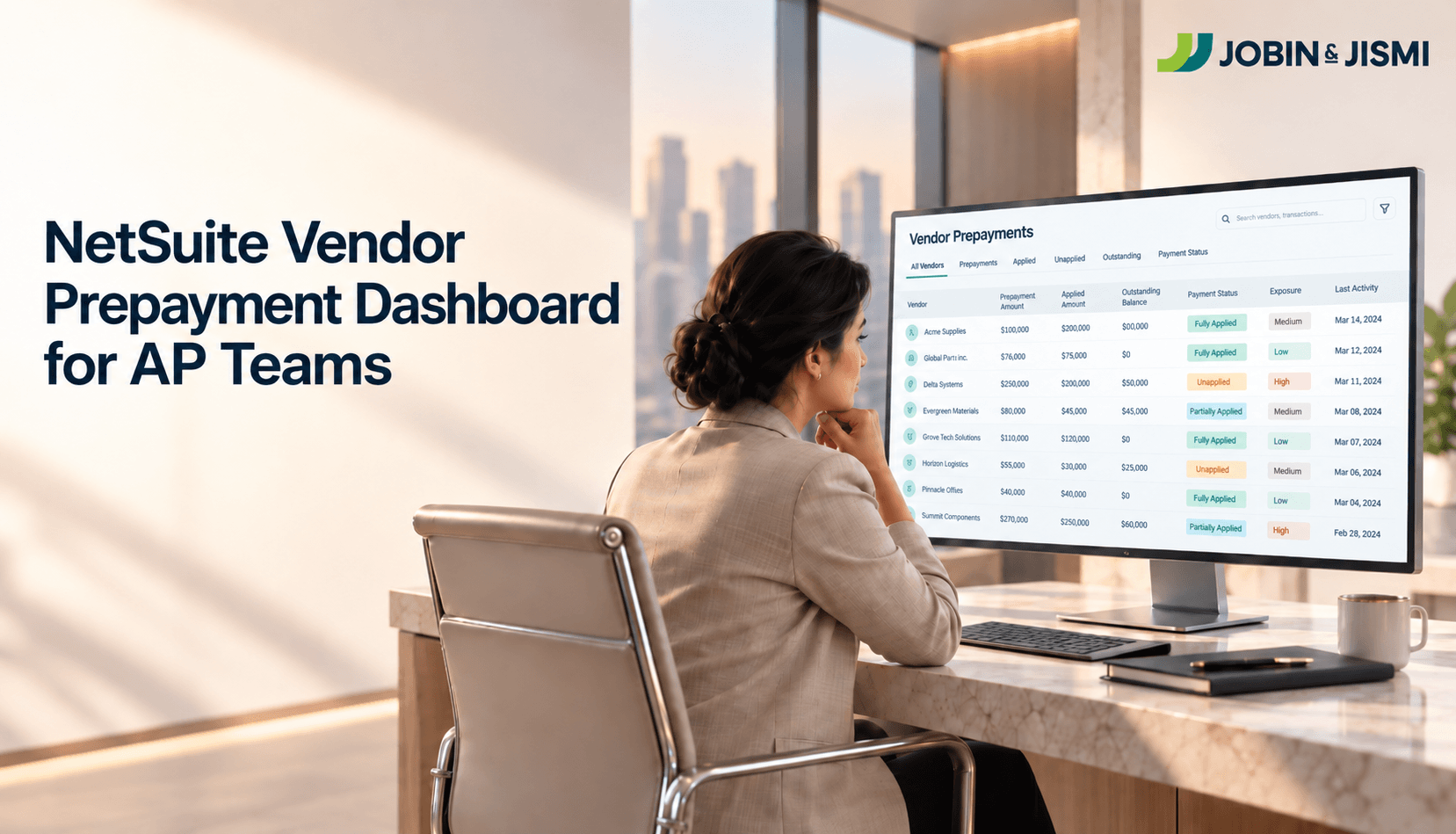
A NetSuite vendor prepayment and credit dashboard is purpose-built to show a vendor's Accounts Payable balance, open prepayments, unapplied credits, and open bills on a single NetSuite screen. Jobin & Jismi, an Oracle NetSuite Solution Provider Partner, built one to extend NetSuite for a specific need: seeing the prepayments and credits that NetSuite records accurately in one place, so AP teams can find and apply them sooner.
What does it take to answer a full vendor question in standard NetSuite?
Ask an AP clerk to answer one question in under a minute: what does the business owe Vendor X right now, what has it prepaid them, what credits sit unapplied, and what did it pay them last year. Standard NetSuite holds every one of those answers. Assembling them into a single view typically involves several steps: opening the vendor record, checking the financial subtab, moving to the transaction list, filtering by type, opening each prepayment to see what it applies against, then running a saved search for historical spend. Each step is routine. Together they take time, and the exact path depends on how an account is configured.
AP efficiency has a measurable cost across the industry. According to Oracle NetSuite’s own guidance on accounts payable automation, organisations relying on manual AP processes typically spend around four times more per invoice than teams with fully automated workflows, and automated teams process more than twice as many invoices per AP employee. That research concerns invoice processing as a whole, not vendor lookups. The same logic applies on a smaller scale, though: every step an AP team saves when answering a vendor question is time available for applying credits, clearing exceptions, or closing the books.
That gap is where recoverable value can go unnoticed. Unapplied vendor credits can remain open for long periods when no one has a quick way to see them together. A prepayment can be raised a second time when the first is not visible at the moment of the request. Aged bills can stay open after a vendor has issued a credit that could have cleared them. NetSuite records all of this accurately. The opportunity lies in how quickly a team can see it in one place.
Jobin & Jismi built the Vendor Prepayment and Credit Dashboard to give AP teams that single view. It sits inside NetSuite, reads the same underlying transactions NetSuite already tracks, and brings the vendor context an AP team asks for most often onto one screen.
What does the Vendor Prepayment and Credit Dashboard actually show?
Pick a vendor from the search bar and a single refresh loads the full picture. The screen surfaces seven pieces of information at once, and each answers a question an AP team gets asked most days.
Vendor balance, front and centre
The header card shows the vendor name and the current Accounts Payable balance without any drilling or extra navigation. A Refresh button pulls the number fresh from NetSuite on the spot if it looks off, and a Create Vendor Prepayment action starts a new prepayment from the same card. Most vendor conversations start with some version of “how much do we owe them,” and this card answers it the moment a vendor is selected.
Vendor profile, one glance away
Address, email, and phone sit in a side panel, visible without switching tabs. When a vendor calls or emails about a payment, the AP team can confirm who they are looking at and how to reach them without leaving the screen.
Prepayments and credits: the money still recoverable
This is the section we expect to matter most to AP teams with a high volume of prepayments or credits. Every open prepayment and vendor credit appears as its own card, showing the original amount, the reference number and linked source document, the balance still To Be Applied as a coloured progress bar so idle amounts stand out, and which bills the prepayment has already been applied against. NetSuite records this same information in full. Reviewing it together typically means running a report or saved search and reading the results. Vendor prepayment is a transaction that records and tracks payments to vendors before they accept a purchase order for a good or service, applied against open bills for that vendor once the vendor delivers. Showing that applied-versus-outstanding status without a separate report is the first step toward applying what remains open.
Open bills, with filters and one-click actions
Below the credits section, every open bill for the vendor appears with its receive date, due date, and remaining balance. Tabs across the top filter by status: Disputed, On Hold, or Open. A Bank Fee toggle isolates bills carrying wire or transfer charges. Each row carries two actions: Pay Now starts a payment, and Select Prepay applies an existing prepayment or credit directly against that bill. In standard NetSuite, applying a credit starts from the bill record, where the user selects the relevant credit and confirms the amount. The dashboard offers the same action directly from the bill row.
Historical totals, across four time buckets
A panel on the right shows three totals across YTD, one year, two years, and three years: vendor bills invoiced, discounts taken through early payment terms, and payments actually made. When a business renegotiates vendor terms or reviews supplier concentration, this is the data it needs, read directly off the same screen rather than assembled from separate saved searches.
Paid history, at a glance
A scrollable, sortable list shows every paid bill for the vendor, most recent first, with a running count at the top of the panel. “Did we pay invoice X” is one of the most common questions an AP team fields, and this panel answers it without leaving the vendor view.
Bank fee capture, at the point of payment
Each open bill carries a bank fee input field, letting AP capture wire or transfer charges at the moment of payment instead of as a separate journal entry afterward. For businesses paying vendors internationally, that is a small feature with a real, recurring time saving.
Standard NetSuite and the dashboard, task by task
The table below sets out how four common vendor tasks are handled in standard NetSuite and in the dashboard. Both draw on the same underlying NetSuite data.
| Task | In standard NetSuite | In the dashboard |
|---|---|---|
| Check current AP balance | From the vendor record and its financial subtab | Shown on load |
| Find unapplied credits | Through the vendor’s transaction list or a saved search | Shown as cards with a progress bar |
| Apply a credit to a bill | From the bill record | From the bill row |
| See three-year vendor spend | Through saved searches or reports | Read from the historical totals panel |
Where does the ROI come from?
Custom dashboards are only worth building if they return more than they cost. Six places tend to be where the value actually shows up.
Cash recovery from forgotten credits and prepayments
Applying a previously unapplied vendor credit returns that value to the business. Where several credits sit unapplied across vendors, the effect adds up, though how much depends entirely on how much unapplied value already exists in a given AP ledger.
Time saved per vendor query
Industry research on AP automation gives useful context. The Institute of Financial Operations and Leadership found that only 9% of AP departments are fully automated today, with 54% partially automated. A vendor-level dashboard addresses a narrower question: how quickly an AP team working in NetSuite can answer one specific vendor query.
Fewer duplicate prepayments
When the current prepayment status for a vendor is visible before anyone raises a new one, duplicate prepayments become less likely, because the information needed to avoid them is in front of the person raising the request. Each prevented duplicate is a working capital saving, even before counting the time spent unwinding it later.
Cleaner aged payables
Older open bills appear alongside the credits that could clear them. That makes clearing them an action an AP team can take in the moment, rather than a separate review someone has to schedule.
Better vendor conversations, and better terms over time
When a vendor calls about a payment, the AP team has the full picture in front of them immediately. Faster, more accurate answers tend to support stronger vendor relationships and, over time, better payment terms, though this is a directional effect rather than one J&J tracks as a standalone metric.
Audit and month-end support
Historical totals across time buckets support faster answers during audit walkthroughs and month-end reviews, because the vendor spend history is already assembled rather than something a team has to build under time pressure.
Does the dashboard replace anything in standard NetSuite?
No. The dashboard is built inside NetSuite using standard SuiteScript and Suitelets, on top of the platform’s native data layer, so it works entirely on top of existing NetSuite functionality rather than beside it. Bills, credits, prepayments, and payments continue to flow through NetSuite’s standard transaction workflow exactly as they do today. The dashboard reads from that same data and adds an action layer on top of it.
That has four practical consequences worth naming for anyone evaluating a build like this. There is no parallel system to reconcile against NetSuite. There is no new data source to secure separately. Standard NetSuite roles and permissions still govern who can see and do what. Because the dashboard is built on standard SuiteScript and NetSuite’s documented records, it is designed to work within NetSuite’s regular release cycle.
For a business already running NetSuite AP, the dashboard is additive. For a business considering NetSuite, it is a sign of how far a standard implementation can be extended without a rebuild.
Which businesses benefit most?
The dashboard tends to deliver value fastest for businesses that fit one or more of the following:
- Work with a large number of vendors, especially international ones
- Use vendor prepayments regularly, for deposits, milestone payments, or seasonal buys
- Deal with vendor credits from returns, rebates, or price adjustments
- Carry aged AP items that need active cleanup
- Want faster vendor query response without adding headcount
If an AP team spends more time navigating between screens than deciding what to do next, this is the need the dashboard addresses.
The dashboard is a purpose-built solution rather than a packaged NetSuite bundle. It can be adjusted for a business’s subsidiary structure, currency setup, approval flows, and reporting needs, and any configuration shown alongside this article reflects one specific setup. A different AP process will produce a different configuration.
How does a business get started?
A short discovery call against a business’s actual vendor data is the usual starting point, used to estimate the recovery and time-saving potential specific to that business. From there, the build follows a defined scope with a fixed timeline.
The conversation is usually worth having when one of the following sounds familiar:
“We know we have unapplied credits, but nobody has time to find them.”
“AP takes too long to answer vendor questions.”
“We keep raising prepayments without checking what is already open.”
“Our aged payables report is longer than it should be.”
Closing thought
NetSuite handles vendor transactions accurately: bills post, prepayments and credits are recorded, and reports run. What many AP teams want is a faster way to see it all together. The Vendor Prepayment and Credit Dashboard brings that view onto one screen inside NetSuite, so teams can spend less time looking and more time deciding.
on LinkedIn

Related Blogs

Frequently Asked Questions
It is a custom screen built inside NetSuite, using standard SuiteScript and Suitelets, that shows a single vendor’s Accounts Payable balance, open prepayments, unapplied credits, open bills, and payment history together. It reads the same transactions NetSuite already stores and adds a faster way to see and act on them, without replacing any standard NetSuite functionality.
A vendor prepayment is a posting transaction that affects the general ledger without initially offsetting Accounts Payable, offsetting AP only once it is applied against a bill. A vendor credit typically arises from a return, rebate, or price adjustment on a bill already recorded. Both can sit unapplied if nobody checks for them before a bill is paid.
NetSuite records credits and prepayments accurately. The challenge is visibility: reviewing everything open for one vendor involves several parts of the vendor record and, often, a saved search. Under normal workload pressure, that review can be deferred, which is how credits and prepayments can stay unapplied for longer than intended. A consolidated view reduces the effort that review requires.
No. Bills, credits, prepayments, and payments continue to move through NetSuite’s standard transaction workflow exactly as before. The dashboard is an action layer that reads the same data and speeds up how an AP team finds and acts on it, so there is no parallel system to reconcile and no new data source to secure.
The approach generally starts with a short discovery call against the business’s own vendor data, followed by a fixed-scope build adjusted for its subsidiary structure, currency setup, and approval flows.
Businesses working with a large number of vendors, particularly international ones, and those that use prepayments regularly or carry aged AP items tend to see the fastest payback, because the dashboard’s value scales with how much vendor context an AP team has to keep track of today.
Yes. Because it is built on NetSuite’s native SuiteScript and Suitelet framework rather than as a separate system, it can be adjusted to a business’s existing OneWorld subsidiary structure, currency setup, and approval flows rather than requiring a separate configuration outside NetSuite.
Organisations running largely manual AP processes typically spend around four times more per invoice than teams with fully automated workflows, and automated teams process more than twice as many invoices per AP employee.
Most AP departments are partially automated rather than fully automated, according to published survey data. The Institute of Financial Operations and Leadership found that only 9% of AP departments are fully automated, with 54% partially automated,. A vendor-level dashboard addresses a narrower slice of that picture: how quickly an AP team working in NetSuite can answer a specific vendor question.